
Update zone attributes and sites in bulk
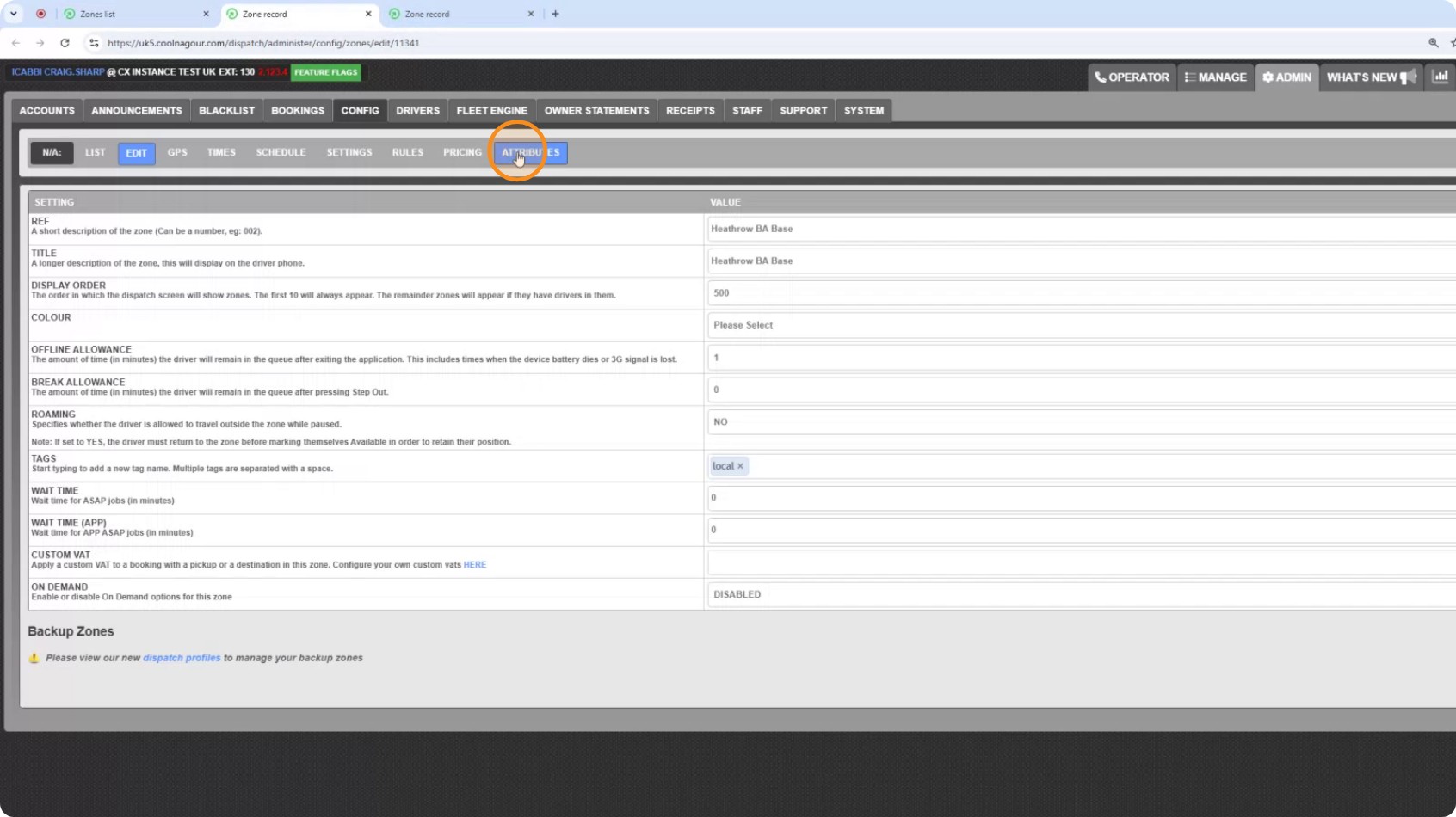
Change the settings on a zone's Attributes tab across many zones at once. Anything you do not tick is left exactly as it was.
Step 1: Know where the changes land
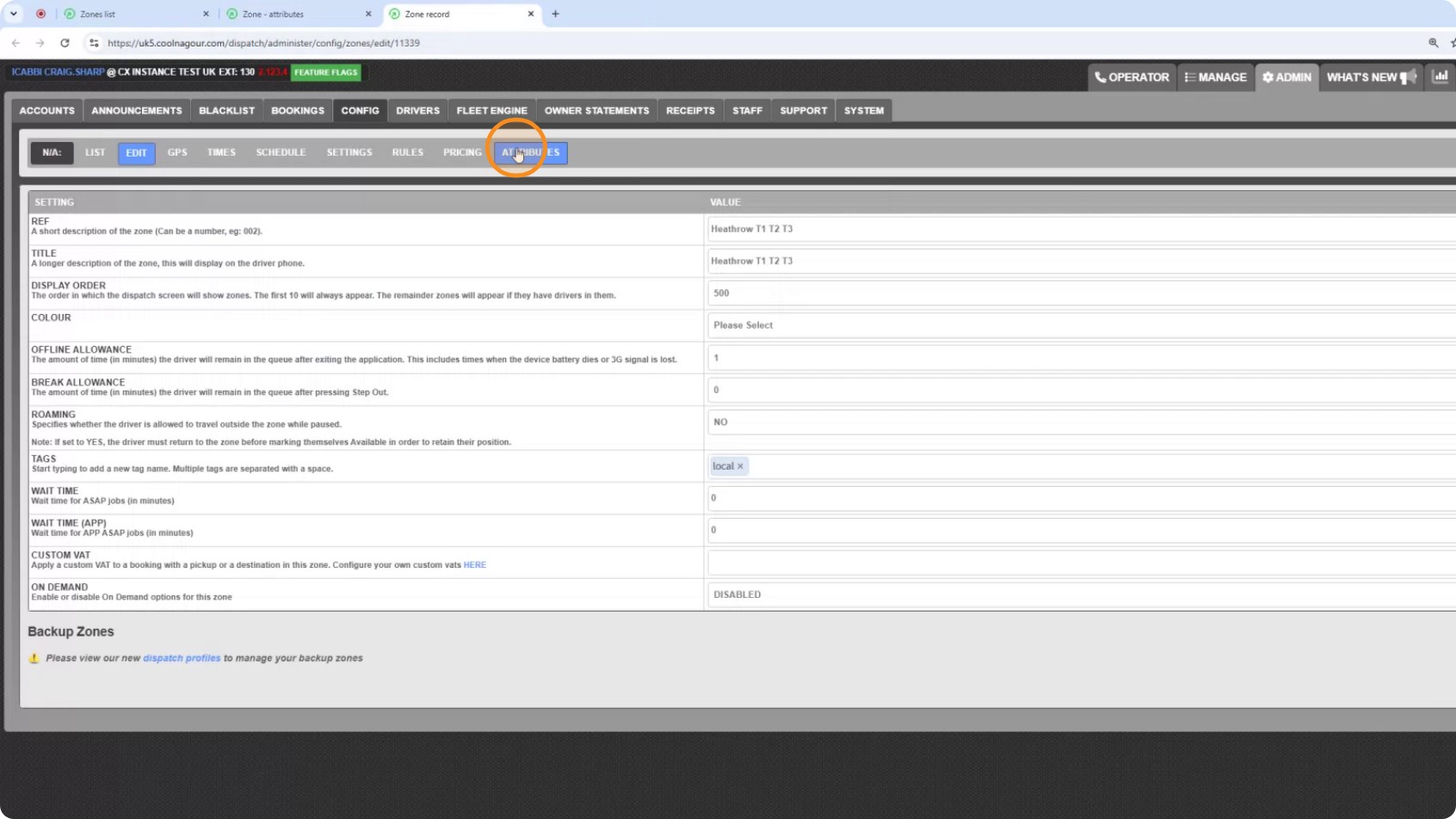
Every zone has an Attributes tab. That is where the settings this tool changes live, so it is worth opening one first to see what you are working with.
Step 2: Open the tool
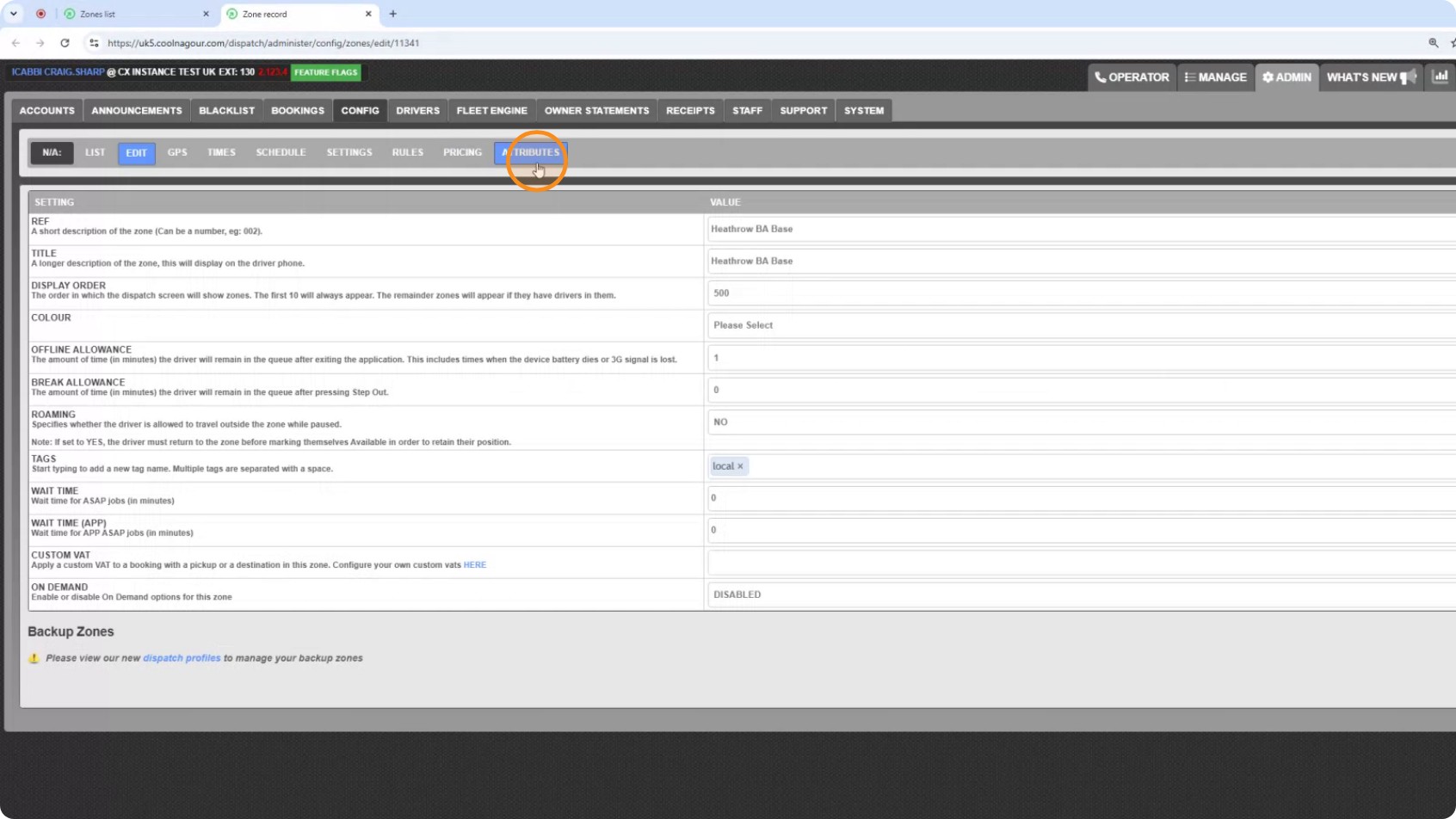
From the zones page in the CabbiCore console, find Bulk Attribute/Site Edit and click Open tool.
Step 3: Pick the zones
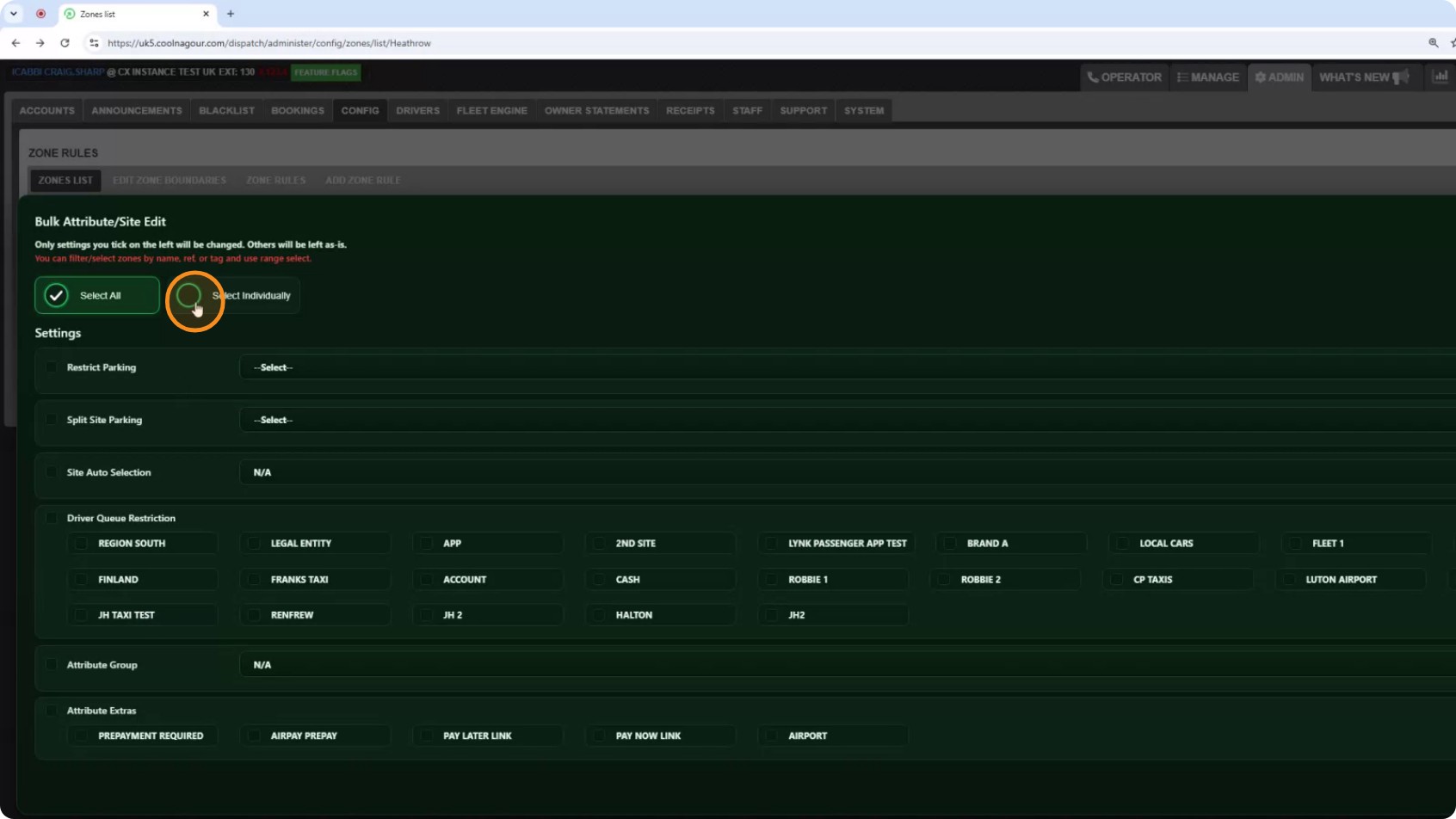
Tick every zone at once, or pick them out individually.
Step 4: Narrow the list down
Type into the filter box to search by zone name, reference or tag, then click Filter. Show All brings the full list back.
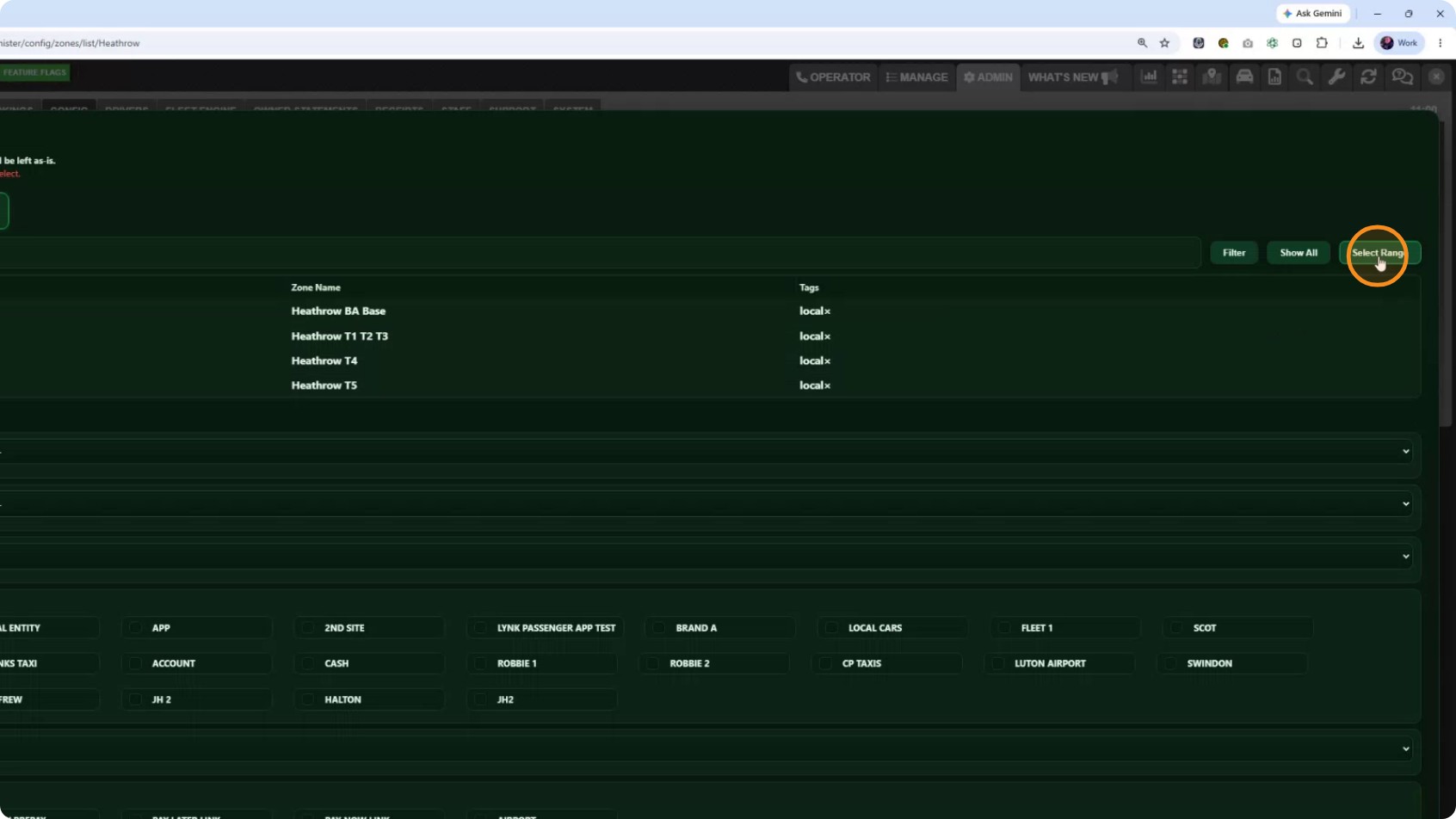
To grab a run of zones in one go, click Select Range first, then click the first zone and the last zone you want. Everything between them is selected.
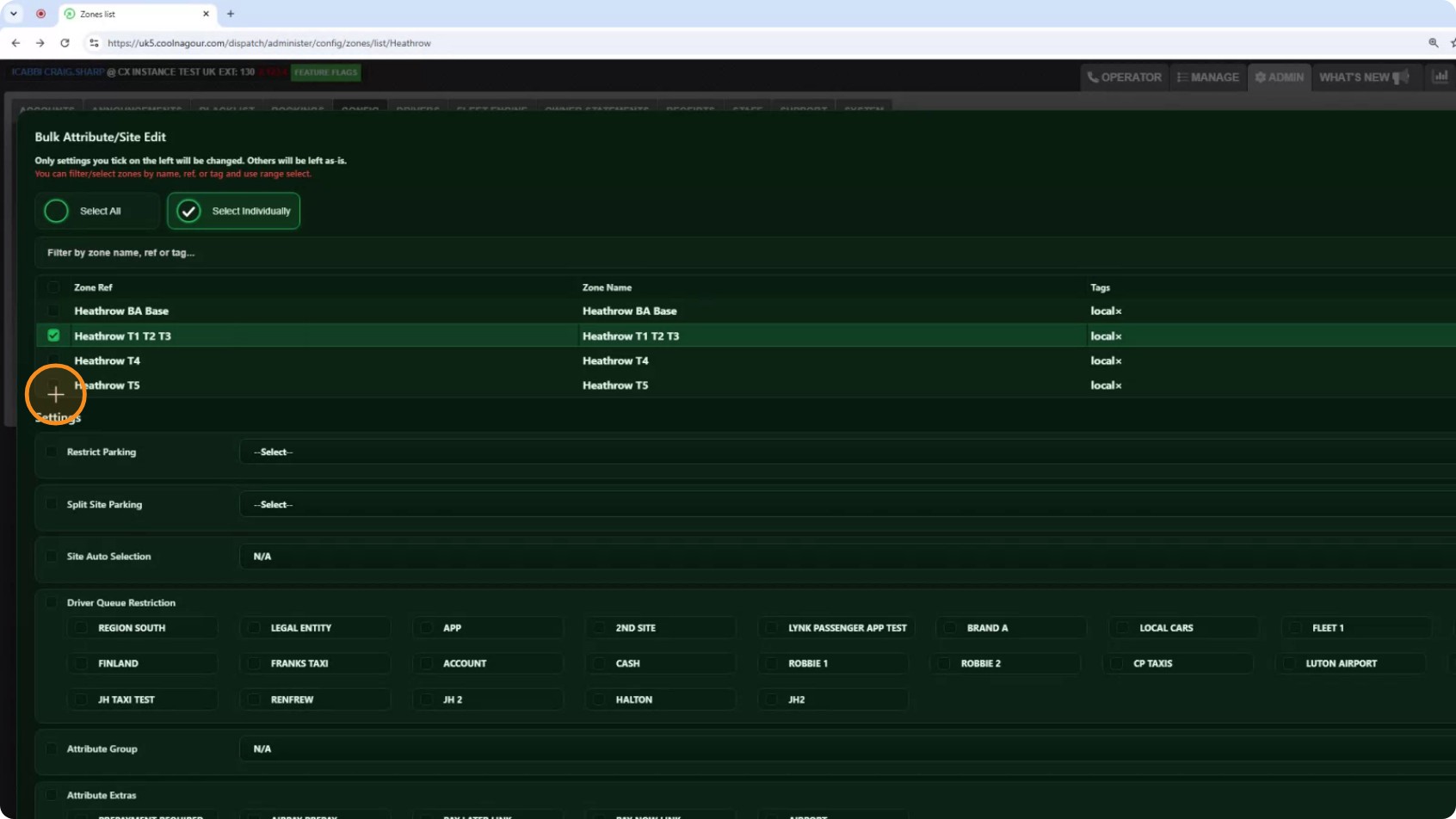
Step 5: Select the zones you are changing
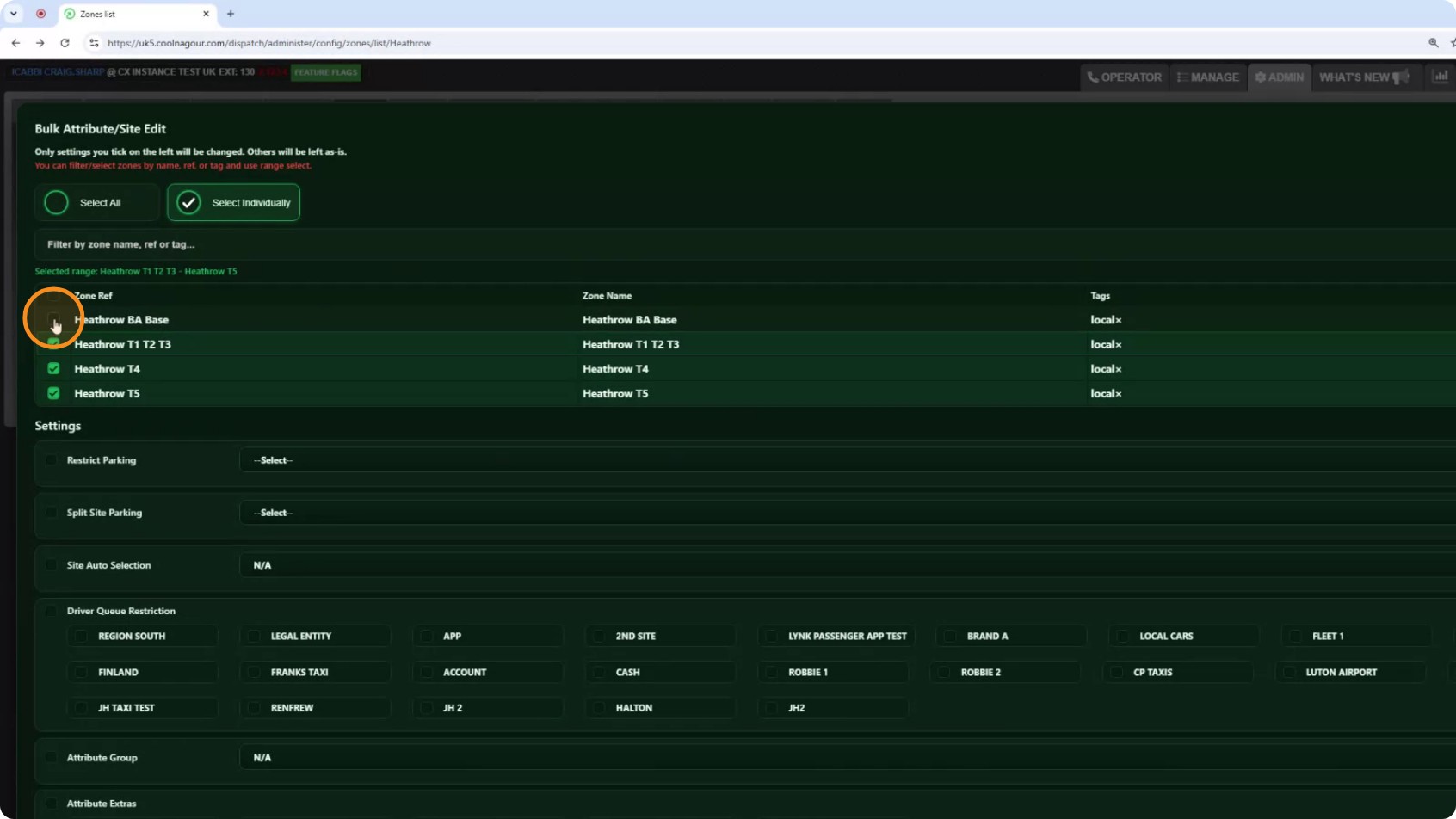
Here we have filtered to the Heathrow zones and selected those four.
Step 6: Tick only what you want to change
These are the settings this tool can change:
- Restrict Parking
- Split Site Parking
- Site Auto Selection
- Driver Queue Restriction
- Attribute Group
- Attribute Extras
Each has a tick box on the left. Tick one and it will be changed on every zone you selected. Leave it unticked and it is not touched — unticked means "leave alone", not "clear it".
In this example we are turning Restrict Parking on, and setting a Driver Queue Restriction so drivers can only queue from certain places.
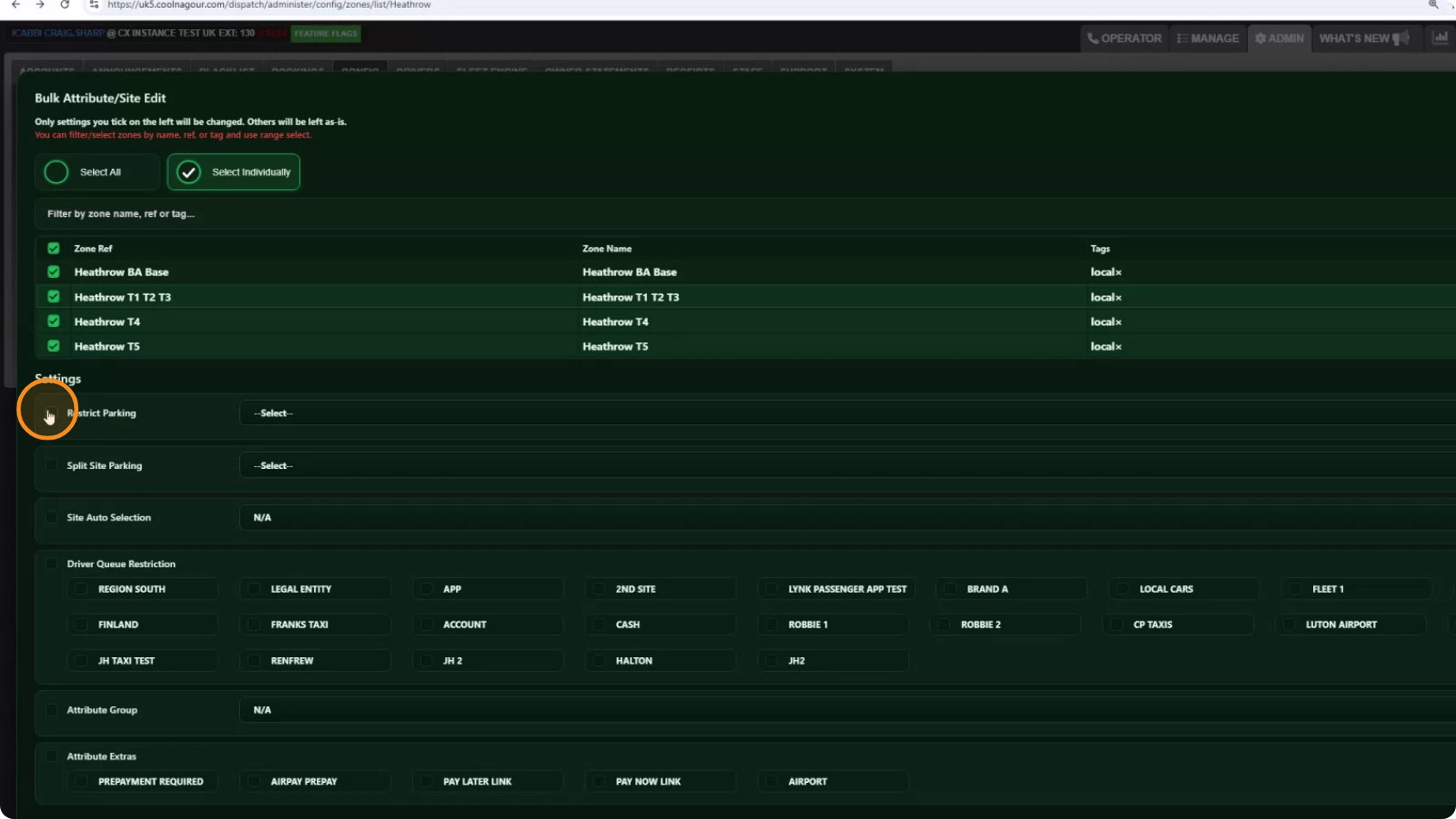
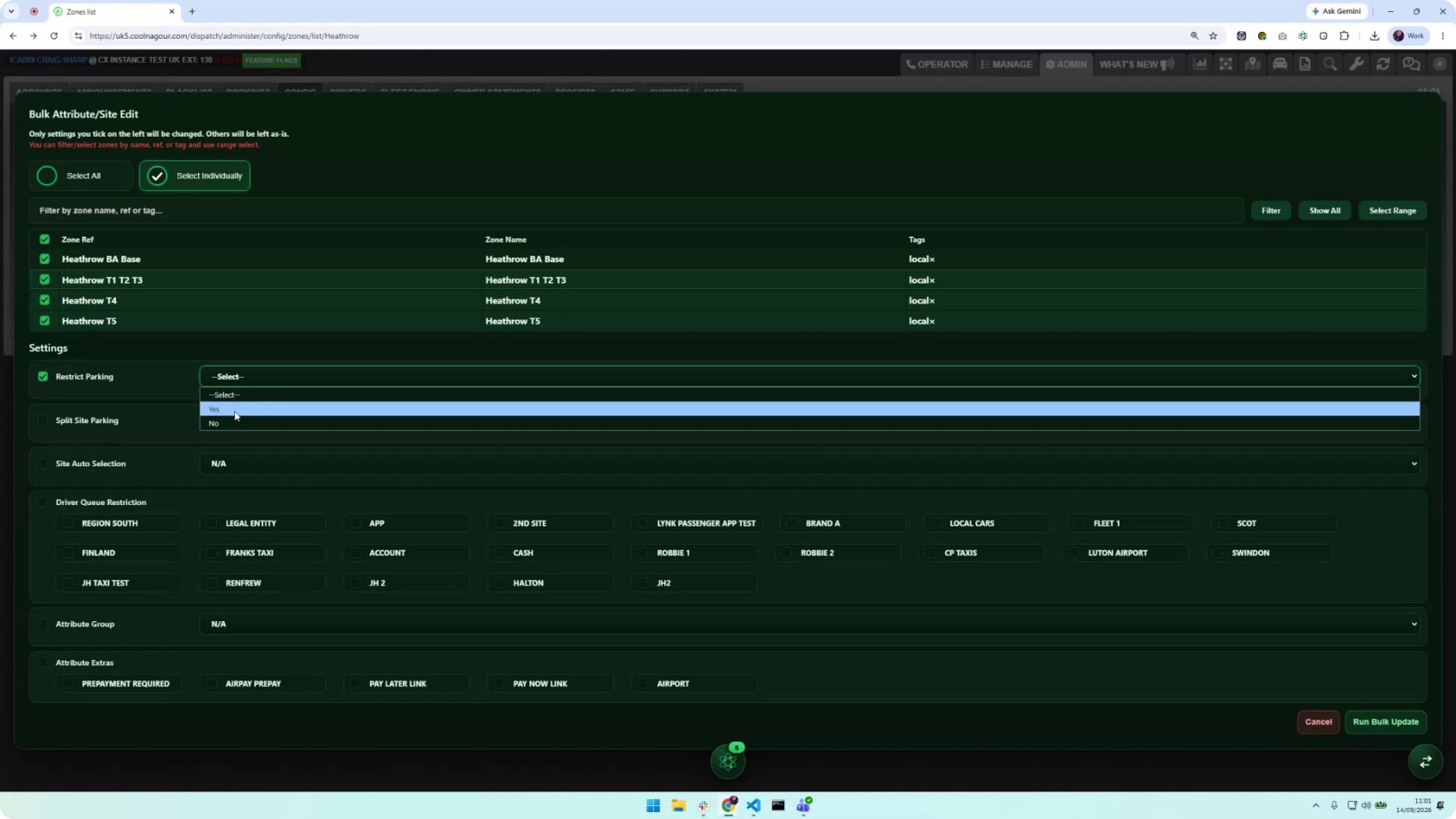
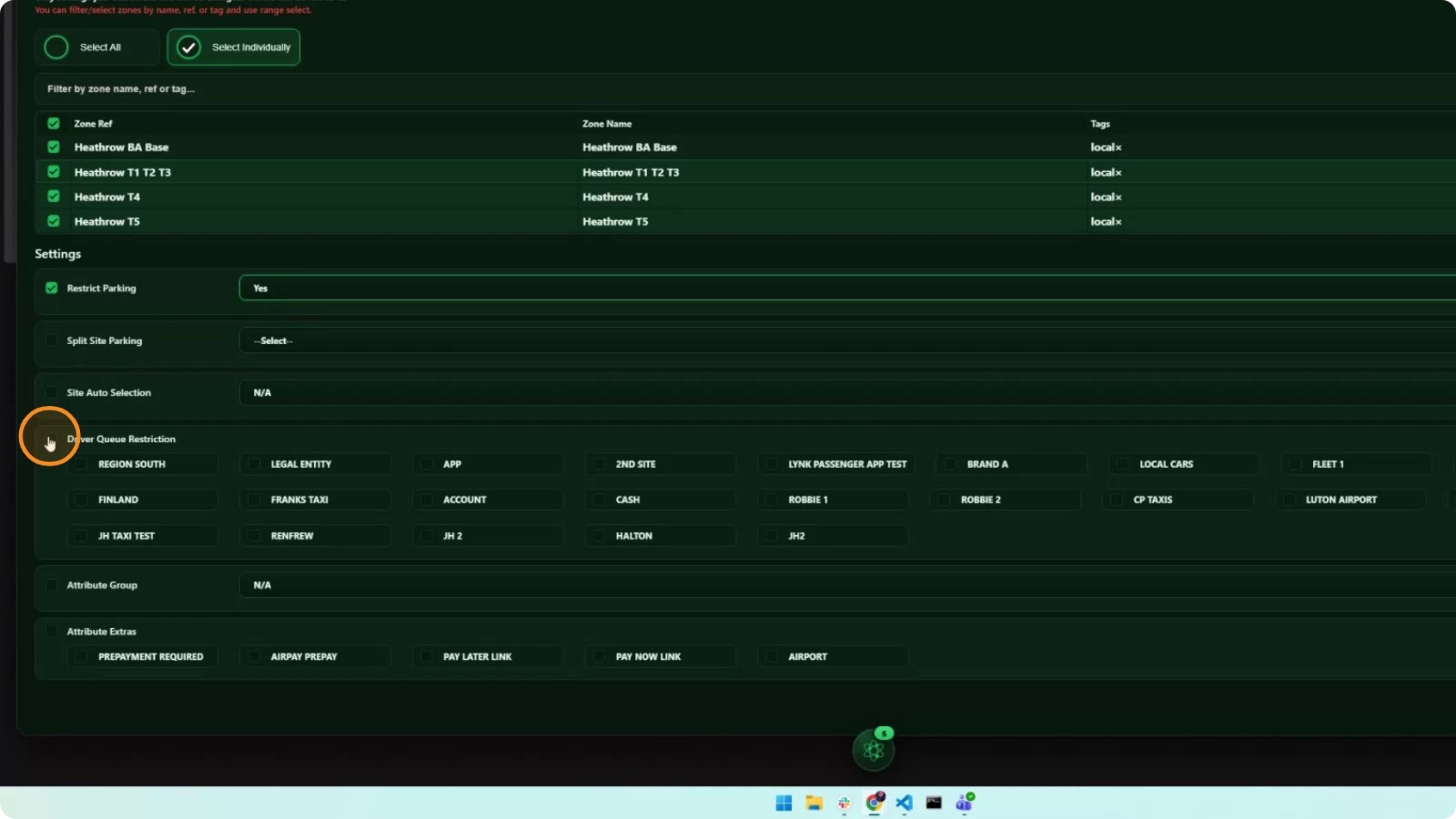
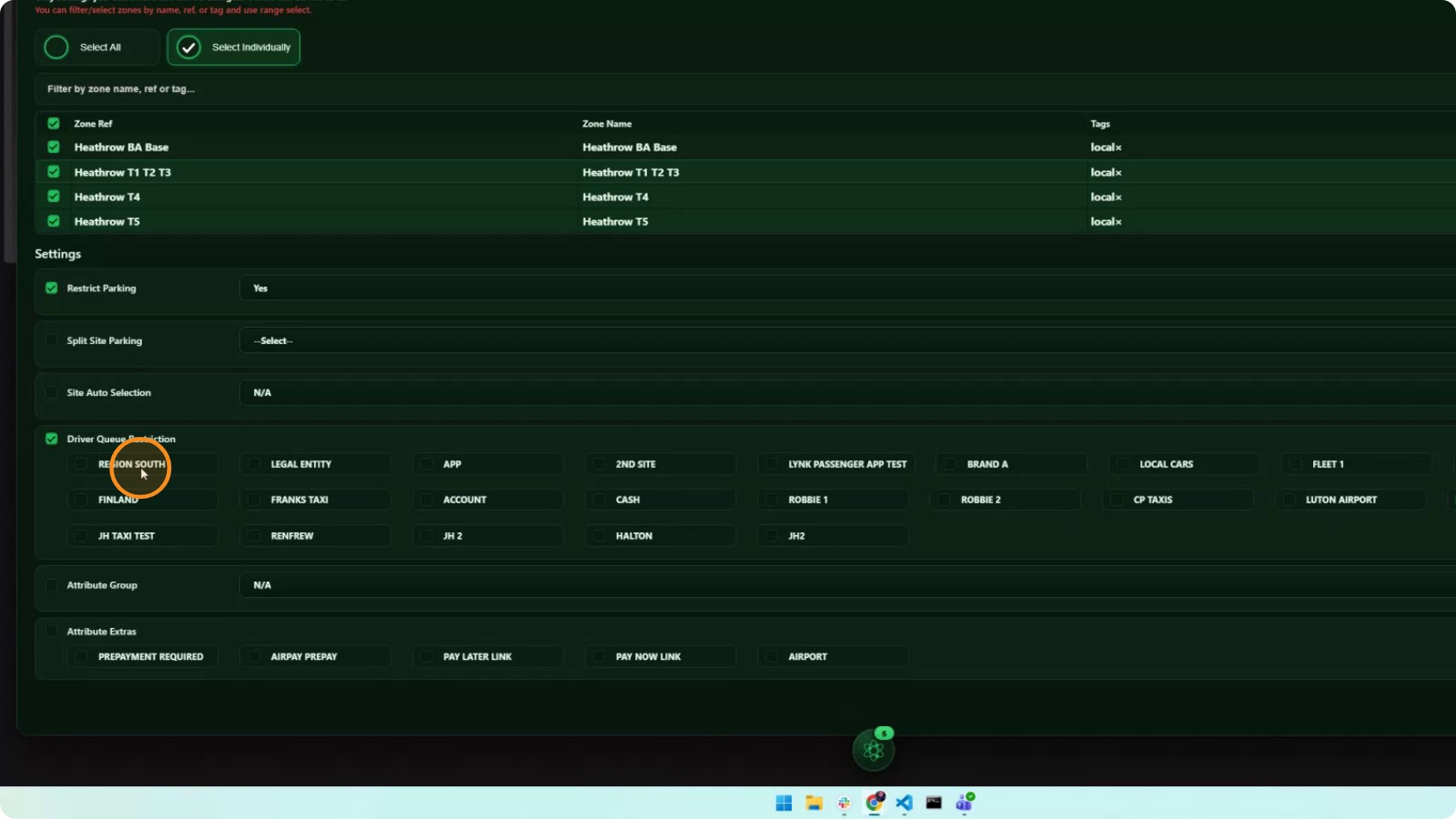
The queues shown here are examples from one fleet — yours will be your own.
Step 7: Run it
Check your selection and your ticks, then click Run Bulk Update.
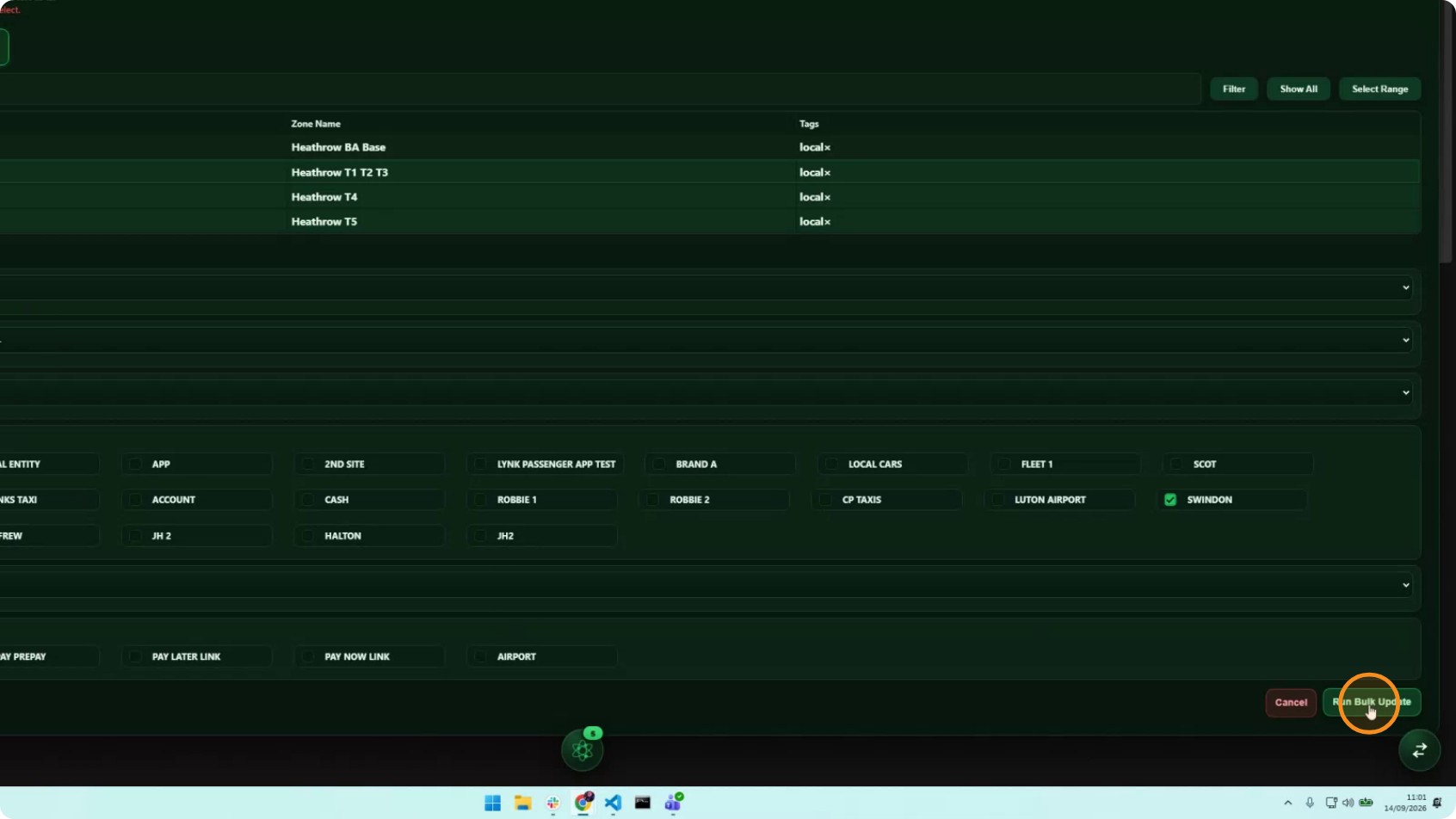
CabbiCore works through the zones one at a time. Leave the window open until it finishes.
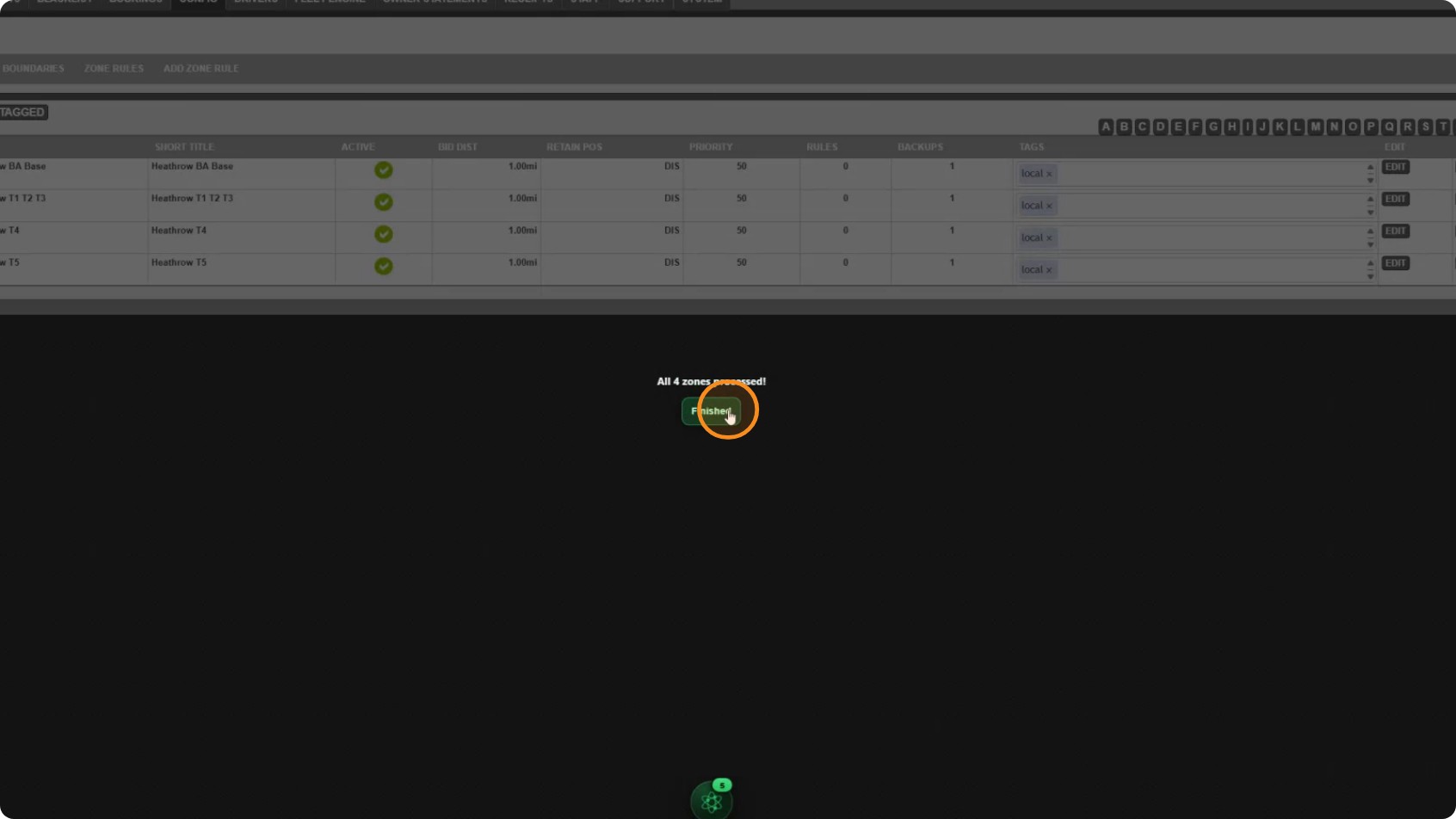
Step 8: Check the result
Open one of the zones you changed and go to its Attributes tab. Your new settings should be there, and everything you did not tick should be untouched.